 Keet Support
Private Mode 🙈
Toggle 'Private Mode' from Profile to mask chat names, avatars, and message previews on-screen, then reveal any single message inline when you need to check it.
Screen-sharing on a call, presenting from your laptop, or just working somewhere your screen isn't private — none of those should mean exposing every room name and message on your screen. Private Mode masks your chat list and message content on-screen while you keep using Keet normally underneath.
Turn on Private Mode
-
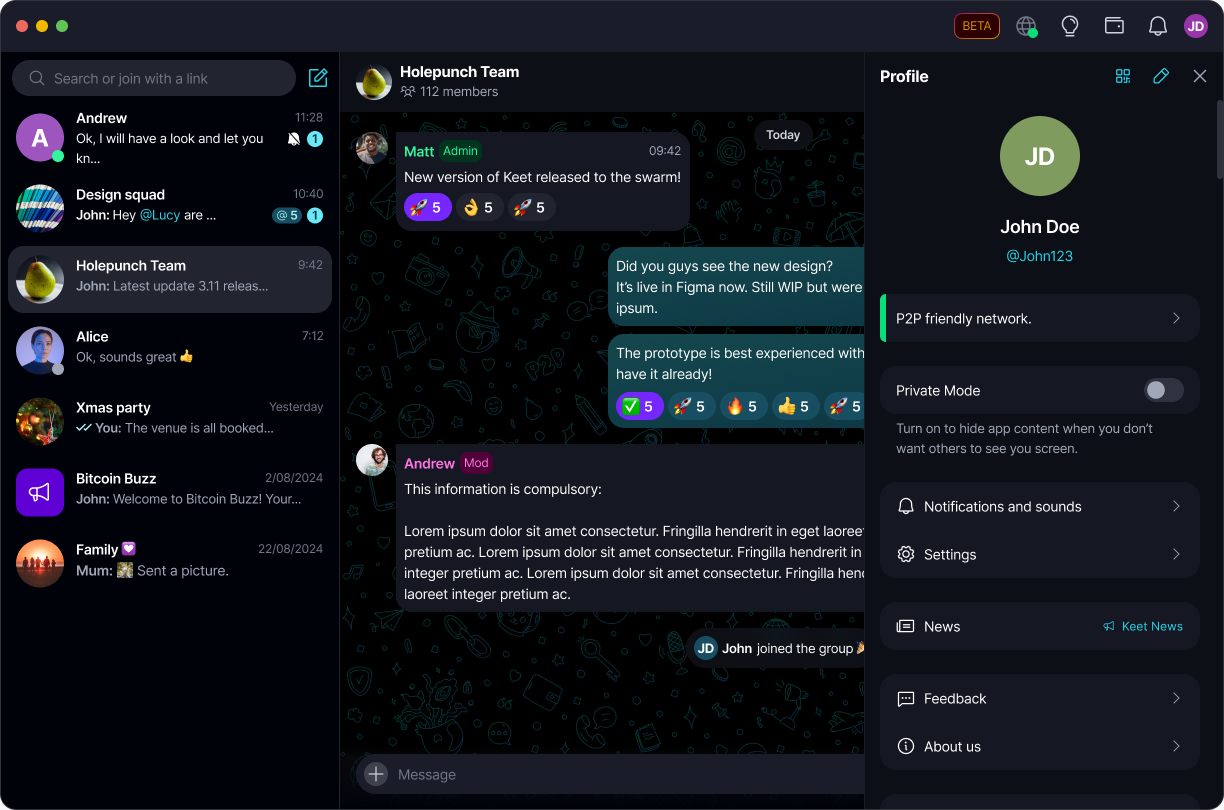
Click your avatar to open 'Profile', and toggle on 'Private Mode':
-
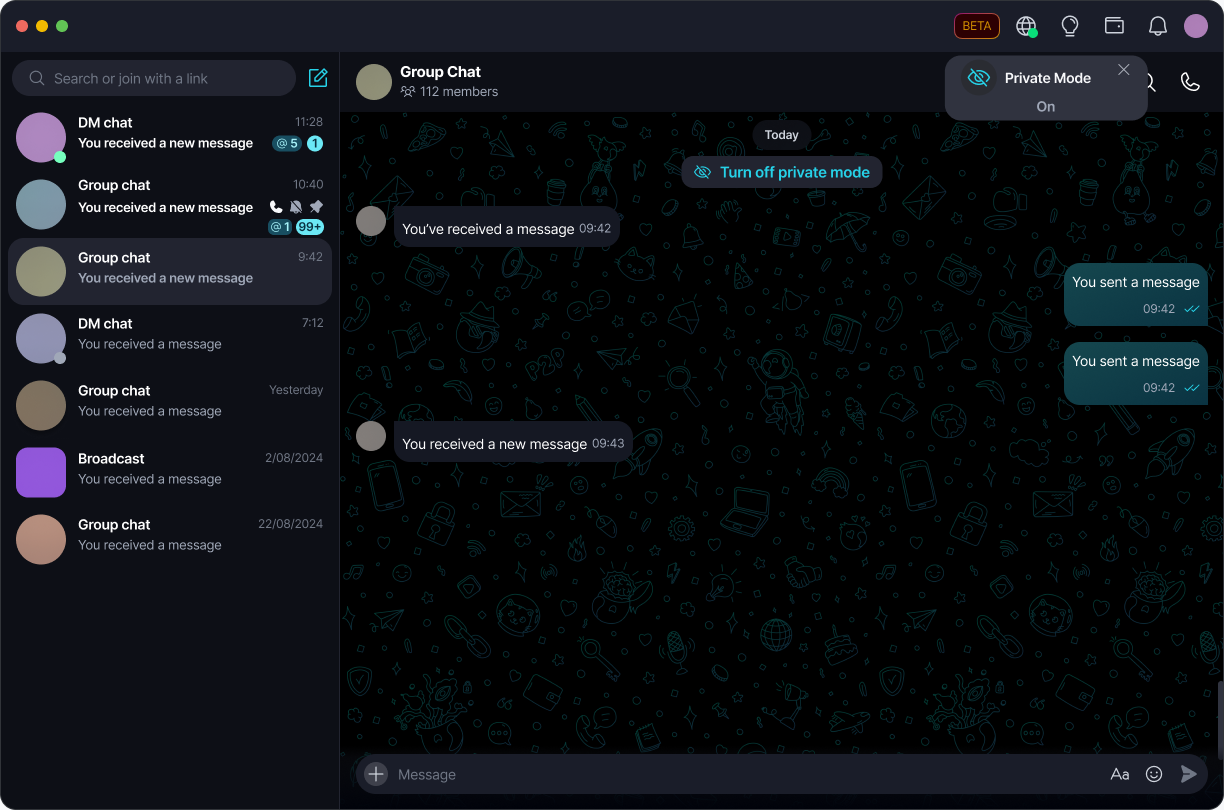
A 'Private Mode' confirmation appears near the top of the window, showing 'On':
-
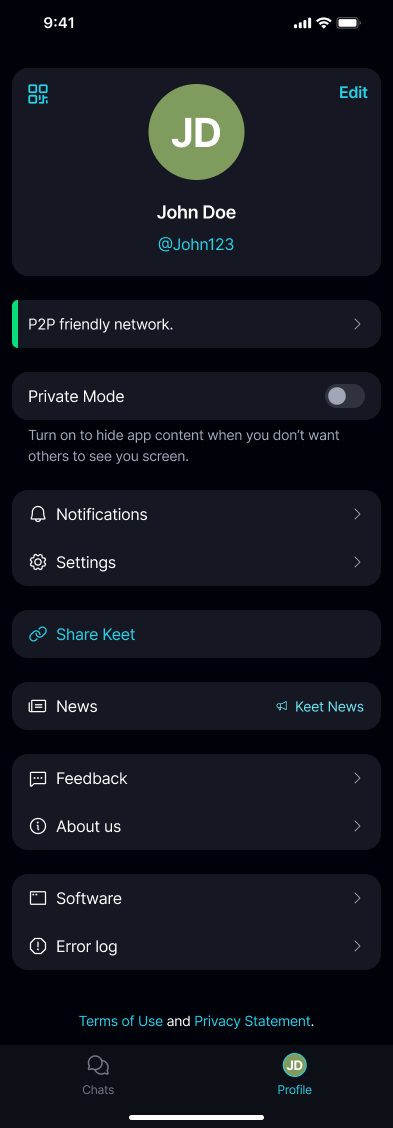
Go to 'Profile' and toggle on 'Private Mode':
-
A 'Private Mode' confirmation shows 'On', and your chat list is immediately masked:
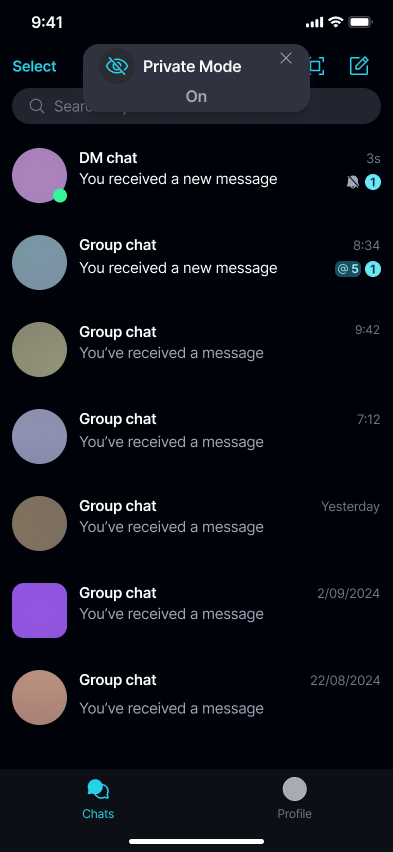
Turning Private Mode off shows the same confirmation with 'Off' instead — nothing else changes until you toggle it.
What gets masked
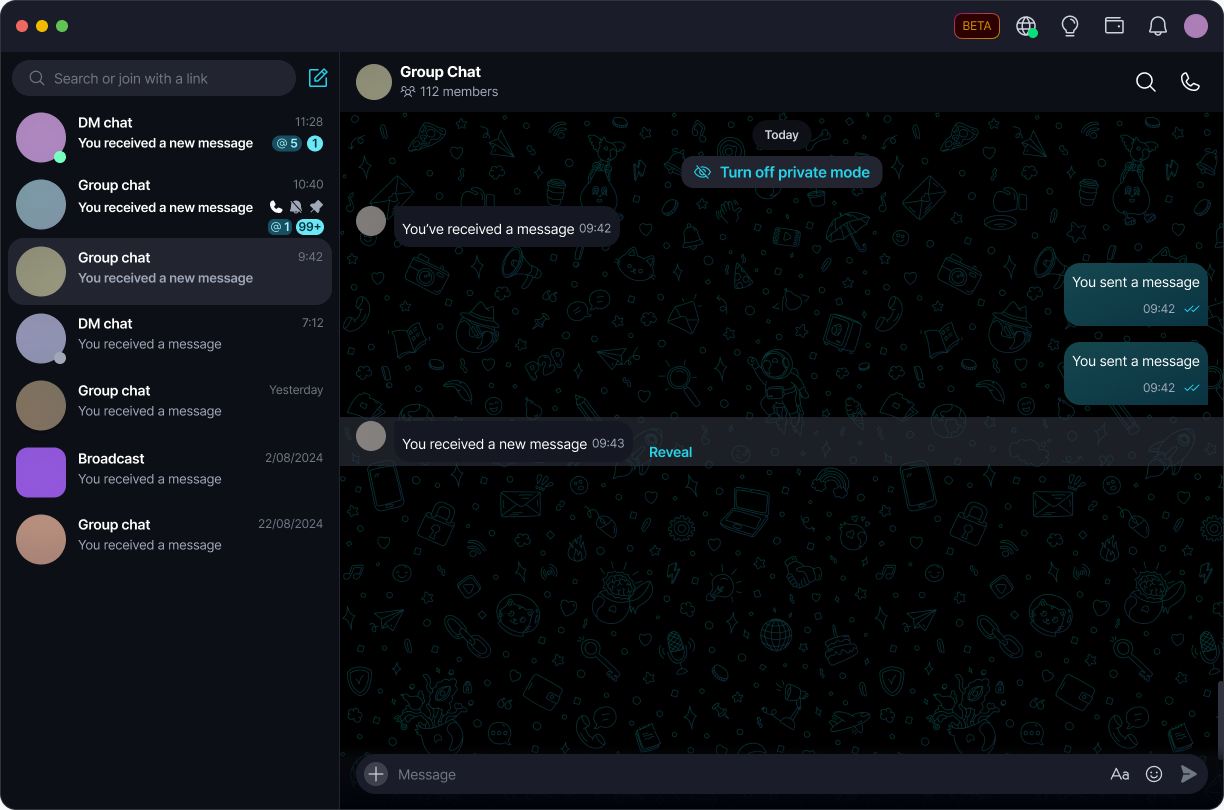
With Private Mode on, Keet hides anything that could identify who you're talking to or what's being said. The layout stays the same, so the app is still easy to use — just unreadable at a glance.
Your chat list
- Room and DM names are replaced with a generic label like 'Group chat' or 'DM chat'.
- Avatars and images are replaced with plain placeholder circles.
- Message previews are replaced with generic text like 'You received a message'.
- Timestamps, unread counts, and mentions stay visible, so the list is still usable.
Inside a chat
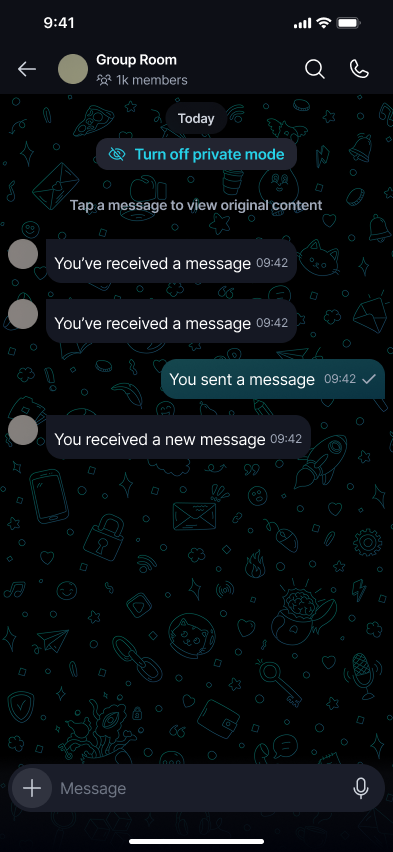
- Sender names and avatars are hidden, so messages can't be tied to a person at a glance.
- Message text is replaced with a generic placeholder, like 'You received a message' or 'Message sent'.
- Media thumbnails are replaced with a placeholder too, instead of showing the original image or video.
- A 'Turn off private mode' banner sits at the top of the chat the whole time, so you're never more than one tap away from normal view — see Turn off Private Mode from inside a chat below.
- On mobile, a hint under the banner — 'Tap a message to view original content' — reminds you how to check any message.
Reveal one message at a time
Need to actually read a message without leaving Private Mode? You can reveal it on its own, without unmasking the rest of the chat.
-
Hover (or, using a keyboard, focus) a masked message to show a 'Reveal' link:
-
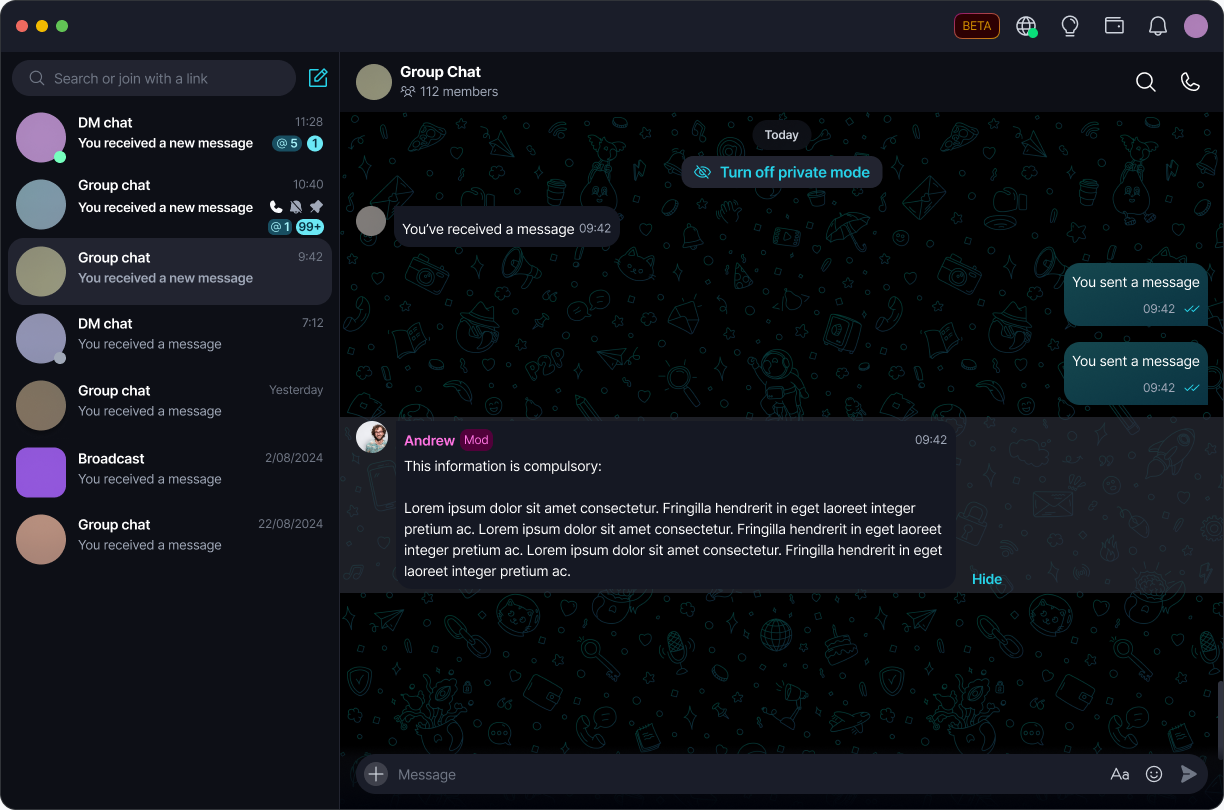
Click 'Reveal' to show that message's real sender and text inline. A 'Hide' link appears in its place to mask it again:
-
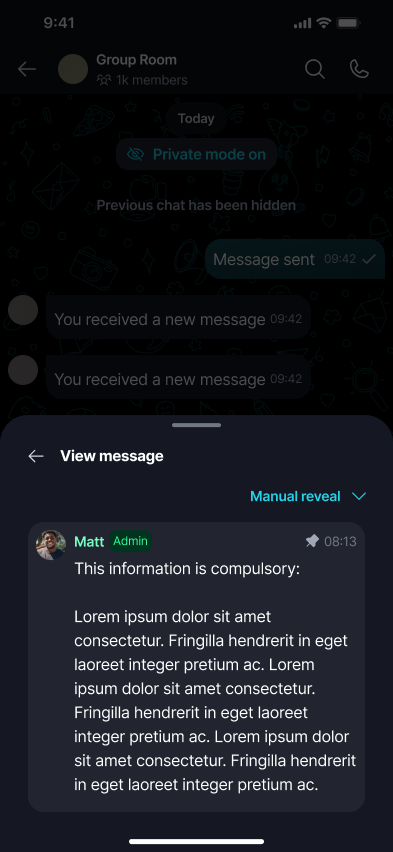
Tap a masked message to open it in a 'View message' sheet, set to 'Manual reveal' by default — it shows the real message once, then masks it again once you back out:
-
Switch the mode to 'Always reveal' if you'd rather that message stay unmasked going forward, instead of re-hiding it every time:
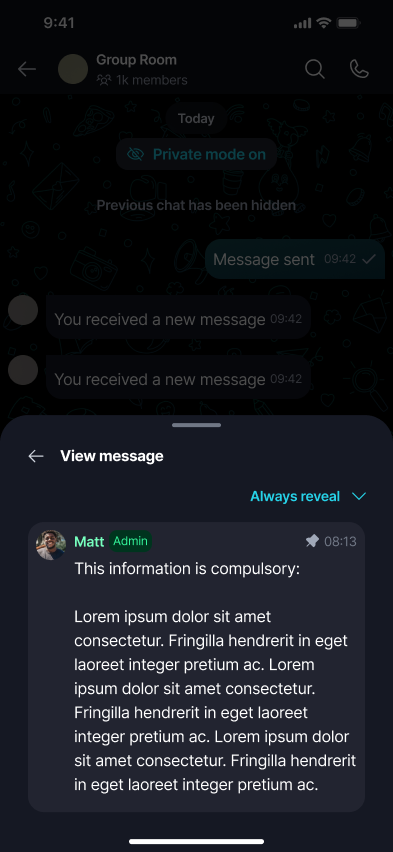
Revealing a message only affects that message — the rest of the chat, and the rest of your chat list, stay masked.
Turn off Private Mode from inside a chat
-
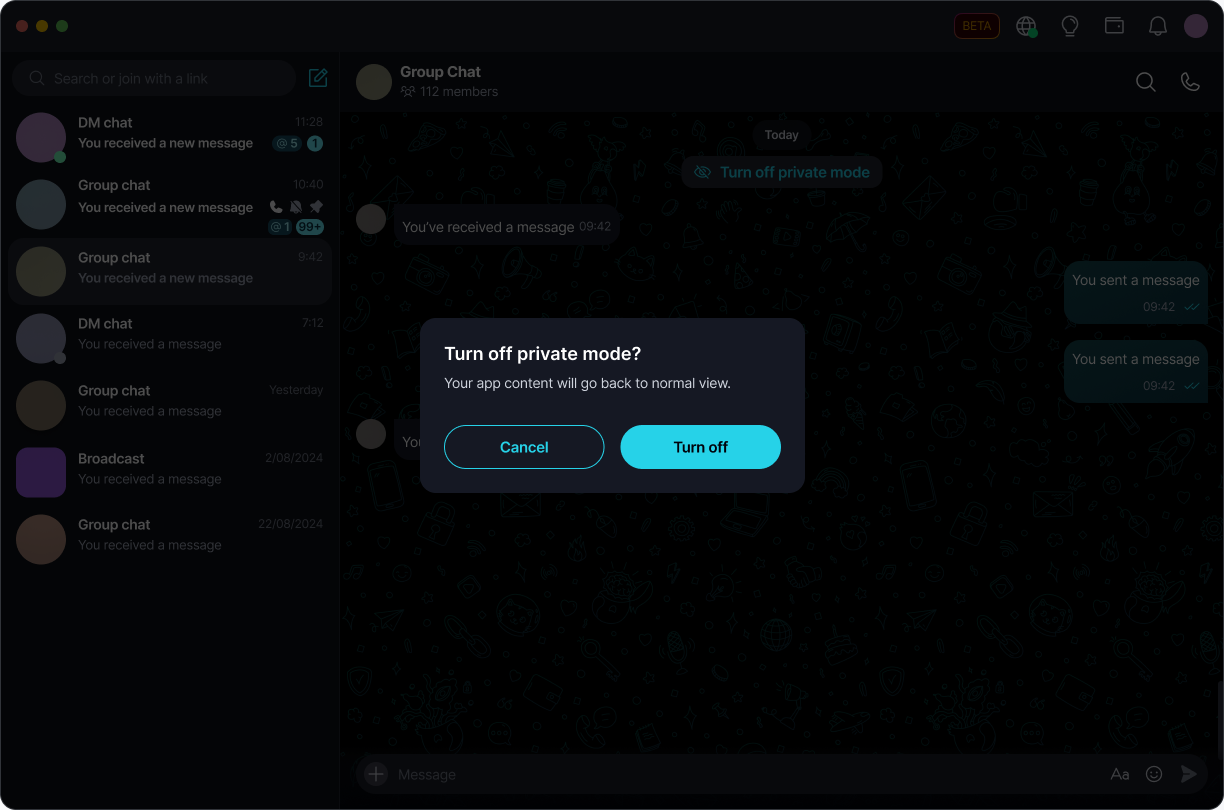
Click 'Turn off private mode' at the top of any chat:
-
Confirm in the 'Turn off private mode?' dialog. 'Cancel' keeps Private Mode on; 'Turn off' restores normal view everywhere:
-
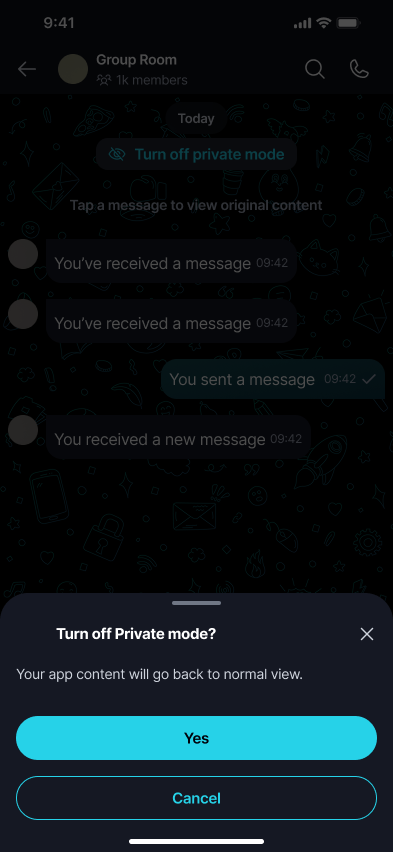
Tap 'Turn off private mode' at the top of any chat:
-
Confirm in the 'Turn off Private mode?' sheet. 'Cancel' keeps Private Mode on; 'Yes' restores normal view everywhere:
You can also turn Private Mode off from 'Profile' at any time, the same way you turned it on.
Keyboard and screen reader support
Every Private Mode control works without a mouse: 'Tab' (or 'Shift+Tab' to go back) moves focus between the toggle, the 'Reveal' and 'Hide' links, and the 'Cancel' / 'Turn off' buttons in the confirmation dialog — then 'Enter' or 'Space' activates whichever one is focused.
Screen readers don't announce a hidden message's real content — they read the same placeholder text sighted users see, until that message is revealed.